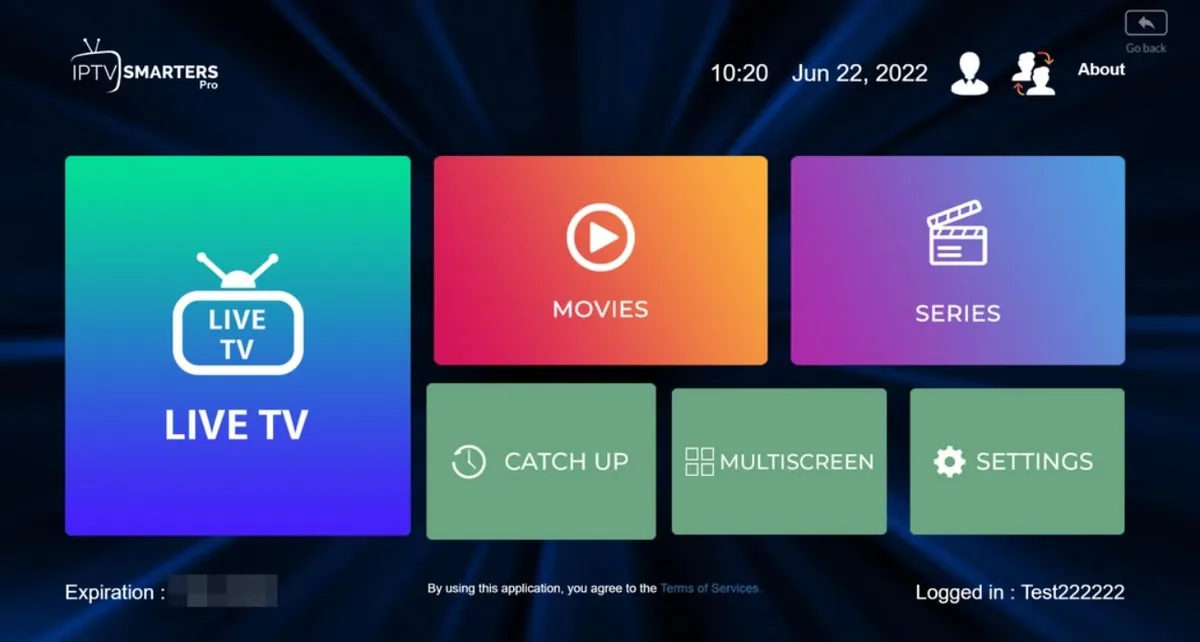
Installing IPTV on Amazon Firestick in Belgium is one of the fastest ways to access 45,000+ Belgian and international channels on your television. This guide covers every step from enabling developer options to entering your subscription credentials and getting channels running in under 10 minutes.
What you need before starting
Before installing IPTV on your Firestick, gather these items: your Amazon Firestick plugged into the television and powered on, the Wi-Fi network password for your home connection, your IPTV Belgium 4K subscription credentials sent via WhatsApp after activation, and a free Amazon account already set up on the device.
The process we describe uses IPTV Smarters Pro as the primary app because it is available directly in the Amazon App Store without any sideloading. If you prefer TiviMate, an additional step using the Downloader app is required, which we cover at the end of this guide. Both apps produce excellent results with our Belgian IPTV subscription.
Step 1 — Enable developer options on Firestick
From the Firestick home screen, navigate to Settings in the top menu bar. Scroll right and select My Fire TV. Scroll down to Developer Options and click it. Inside, find the option labelled Apps from Unknown Sources and toggle it to On. Confirm the warning message that appears by selecting Turn On.
This setting allows you to install apps that are not listed in the Amazon App Store. It is required for TiviMate and some other IPTV players, though not for IPTV Smarters which is available directly in the Store.
Step 2 — Install IPTV Smarters Pro
From the Firestick home screen, press the Search icon in the navigation bar. Type IPTV Smarters Pro using the on-screen keyboard. Select the correct result — the app icon is a blue and white design. Press Download or Get and wait for the installation to complete. The app installs in under a minute on most connections.
Once installed, IPTV Smarters Pro appears in your Apps section accessible from the top navigation bar of the Firestick home screen. You can also ask Alexa to open it by holding the microphone button and saying open IPTV Smarters.
Step 3 — Enter your IPTV Belgium credentials
Open IPTV Smarters Pro. On the first launch you see a login screen with several options. Choose Login with Xtream Codes API if you received a username and password from us, or Login with M3U URL if you received a playlist link. Both methods work equally well.
For Xtream Codes login: enter the server URL, username and password exactly as sent to you on WhatsApp. Capitalisation matters. For M3U URL login: paste the full URL including the http or https prefix. After entering your details, press Add User or Login. The channel list loads automatically within 30 to 60 seconds depending on connection speed.
Step 4 — Navigate your Belgian channels
After loading, IPTV Smarters organises your content into Live TV, Movies and Series tabs. Navigate to Live TV to find your Belgian channels. Use the search function within the app to find a specific channel name quickly. The EPG guide shows the current programme on each channel if your subscription includes it.
Sports channels appear in the Sports category and Belgian channels in the Belgium or Local folder depending on how the playlist is organised. If you cannot find a channel, use the search bar and type the first few letters of the channel name.
Installing TiviMate as an alternative
TiviMate is not available in the Amazon App Store and requires the Downloader app for installation. Install Downloader from the Amazon Store, open it and enter the APK URL provided by our WhatsApp support team. Download the TiviMate APK, install it when prompted and open TiviMate.
In TiviMate, tap Add Playlist, then M3U Playlist, and enter the M3U URL from your activation message. TiviMate's EPG interface and catch-up features are superior to IPTV Smarters for users who watch a lot of live sport and scheduled television. Premium plan subscribers benefit most from TiviMate because of its advanced catch-up integration.
Troubleshooting Firestick IPTV
If channels load but buffer frequently, move the Firestick closer to your Wi-Fi router or connect via Ethernet using a Firestick Ethernet adapter. Clear the app cache in Firestick Settings under Applications, then Manage Installed Applications, then IPTV Smarters, then Clear Cache.
If the channel list fails to load entirely, double-check your credentials character by character. A single typo in the server URL or password prevents loading. Contact our WhatsApp support team with a screenshot of your error message and we will identify the issue within minutes.
Ready to start streaming Belgian channels in 4K? Get your free 24-hour trial via WhatsApp — no credit card required.
💬 Request Free TrialFAQ — How to Install IPTV on Firestick Belgium — Step by Step Guid
Questions about setup or your subscription? Our WhatsApp team responds in under 5 minutes.
💬 WhatsApp Support